
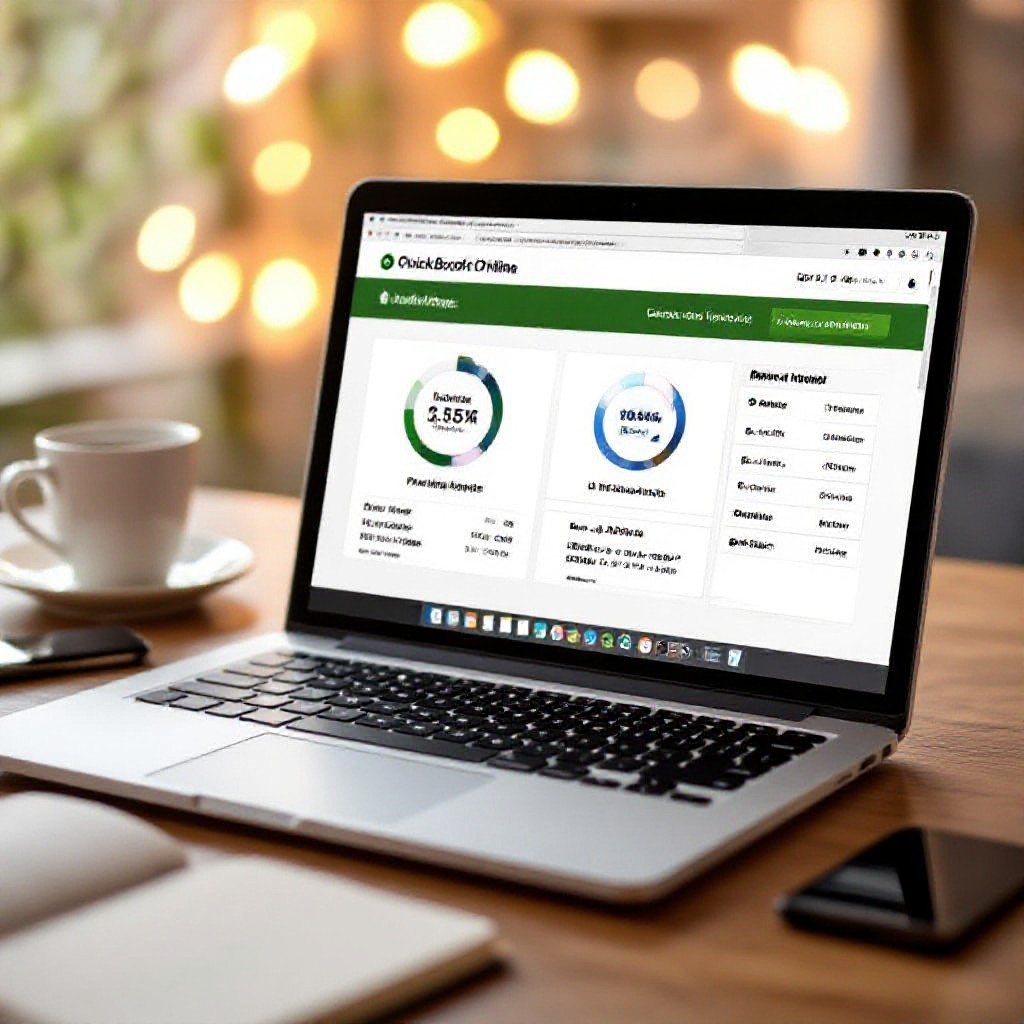
There’s that Friday scramble when invoices pile up and you wish they handled themselves; you set up recurring invoices in QuickBooks Online to save hours, cut errors, and get paid faster, want to stop chasing payments?
Key Takeaways:
- Automating recurring invoices saves time and cuts down on late payments. Want to stop chasing customers every month? It makes cashflow more predictable and frees you up to focus on other stuff…
- Set up a recurring invoice template in QuickBooks Online: Gear icon > Recurring Transactions > New > Invoice. Choose schedule, customer, products/services, and whether to auto-send, then name the template and save it as Active.
- Enable QuickBooks Payments and turn on automatic card charging for customers with a card on file. That lets invoices get paid on the due date without manual follow-up.
- Edit, pause or delete templates anytime from the Recurring Transactions list as your needs change. Use the auto-email option to send invoices and watch Accounts Receivable reports to track what’s been generated and paid.
- Include clear payment terms, test one recurring invoice before rolling out many, and monitor exceptions. Note that some payment methods don’t support automatic charging, so you’ll need to handle those manually.
What’s the big deal with recurring invoices anyway?
Lately small businesses are moving to subscriptions and retainers, so recurring invoices keep you from retyping bills and stop payments from slipping through the cracks, freeing you to handle customers, not admin.
Saving time so you don’t lose your mind
When you create a recurring template in QuickBooks Online, invoices go out on schedule and reminders handle follow-ups – you skip the weekly billing grind and get time back for actual work.
Honestly, it’s the easiest way to keep cash flowing
You see steady income because invoices hit inboxes predictably and online payment options mean fewer late pays, which makes forecasting easier and stress much lower.
So if you want steadier cash, set up recurring invoices and offer online payment – customers click once and you stop chasing. You can customize messages, apply discounts for annual plans, and track revenue without babysitting. Want fewer awkward payment conversations?
Autopay changes everything.
Just test a template, save it, tweak, and move on – it pays off fast.
Manual vs. automatic: What’s the real deal?
Lately more small businesses are switching to recurring invoices in QuickBooks Online, and you might be weighing automation versus manual sends. You get steady cash flow and less chasing with auto-sends, but you also risk repeating mistakes if an invoice needs a tweak – so what’s the right fit for your workflow?
Letting the system do all the heavy lifting
Automating recurring invoices means you set it once, QuickBooks sends on schedule, and you stop babysitting billing. You save time, cut missed invoices, and your cash flow evens out – just spot-check templates and dates now and then so errors don’t multiply.
Why I think ‘reminders’ are better for some folks
Sometimes reminders give you the best middle ground: QuickBooks nudges you, but you still decide when to send, tweak amounts, or add notes, so you avoid awkward customer moments while keeping control.
Because reminders let you catch oddball invoices before customers see them, they work well if your charges change or you apply discounts case-by-case. You keep oversight, avoid repeated mistakes, and still trim the slog of manual billing.
Use that combo and you get the best of both worlds – less hassle, more control.
My take on making the whole process foolproof
Think about all the billing slip-ups you can avoid by setting clear templates and reminders; if you need a quick how-to, check How to make an existing invoice recurring in QuickBooks … and then lock down notification settings so nothing sneaks past you.
Seriously, don’t ignore the sales tax settings
Sales tax mistakes drain time and cash, so set the correct rates on every recurring template, verify customer tax status, and run a quarterly review to catch mismatches before they bite you.
What to do when your prices change mid-stream
Adjust the recurring template for future bills or start a new series and note the effective date so clients aren’t blindsided, that way your books stay tidy and disputes drop dramatically.
If prices drift during a contract you’ve got options: update the old series for future invoices or end it and start a new one so you can track historic rates, and put the change date in the memo so clients see why totals shifted. You might also send a one-off catch-up invoice for any shortfall, and check your accrual entries so revenue lines up with what actually hit the bank – messy overlaps mean more work later, so plan the switch like you mean it.
Wait, why isn’t it working? Let’s troubleshoot
Imagine you’ve set a monthly invoice and it didn’t send, client not billed and you’re staring at errors, what now? Check Sales > Recurring Transactions to confirm the template is active, verify customer info and payment method, then read the QuickBooks error note; recreate the template if needed.
Dealing with those annoying expired credit cards
Got expired card issues? When recurring payments fail, update the card on the customer record and ask the client to add a new one in their portal; set email reminders so you’re not surprised next billing cycle.
How to avoid the nightmare of duplicate invoices
Prevent duplicates by checking active templates, avoiding overlapping schedules, and tagging templates with clear names; if you use an outside billing app, make sure only one system is set to send invoices so you don’t bill twice.
Another mess is when both QuickBooks and a third-party app send the same invoice, and clients end up billed twice so you’re untangling the fallout. Start by checking the Audit Log, integration settings, and recurring template names; then disable auto-send in one place or add a ‘DUP’ prefix to template titles so duplicates jump out. Test with a dummy customer first.
Final Words
With these considerations and the recent rise of subscription billing, you’ll automate recurring invoices in QuickBooks Online: set templates, pick schedules, enable auto-reminders, tweak as you go, and cut billing time, want to get it running today?
FAQ
Q: How do I set up recurring invoices in QuickBooks Online?
A: About 70% of small businesses use recurring invoices for steady subscription or retainer income, so you’re in good company. Go to the Gear icon – Recurring Transactions or hit the + New button and pick Recurring Transaction, choose Invoice, then create a template. Name it, pick Scheduled as the type, set the interval (daily, weekly, monthly, yearly or a custom cadence), pick the customer, add line items, due date terms and any message you want sent, then save.
Want the invoice to go out without you touching it? set the template to Automatically send and choose the email template. If you need the system to charge the customer automatically, save their payment method on file and enable auto-charge on the template before saving.
Q: Can QuickBooks Online automatically charge my customers’ cards?
A: Nearly 40% of QuickBooks Online users take payments through QuickBooks Payments, which lets you auto-charge cards on file. First sign up for QuickBooks Payments in Settings – Account and Settings – Payments, follow the signup steps and link your bank. Then add or collect the customer’s card or bank details on their customer record and check the option to charge that payment method automatically when you build the recurring invoice template.
Auto-charges will create a payment when the invoice is generated, subject to the payment processor rules and fees, so expect transaction fees and possible authorization holds. Get customer permission before saving cards on file – good practice and often required by processors.
Q: How do I edit, pause, or stop a recurring invoice?
A: Most companies tweak templates a few times a year, so editing and pausing is common and easy. Go to the Gear icon – Recurring Transactions, find the template, and choose Edit to change amounts, schedule, customer info or the auto-send/auto-charge options. To pause future invoices set the template to Inactive or delete it if you want it gone for good.
Turning a template inactive stops future invoices but doesn’t change invoices already created.
Q: Can I use different billing schedules or prorate invoices in QuickBooks Online?
A: QuickBooks supports daily, weekly, monthly and yearly recurring intervals and also lets you set custom intervals, so you can match most billing rhythms. For odd first periods or mid-cycle starts you usually adjust the first invoice amount manually (create a partial first invoice or add a one-time line item) because QBO doesn’t auto-prorate specific charges for you.
If you need a different end date, choose End after X occurrences or set an End date on the template – that keeps things tidy.
Q: What common problems happen with recurring invoices and how do I avoid them?
A: Late or failed payments are the biggest headache – and many come from expired cards, missing permissions, or incorrect customer info. Verify payment methods, keep card tokens refreshed, and test a template with a small charge so you see how auto-charge runs. Set up notifications for failed payments and create a retry plan and a friendly follow-up email to customers when a charge fails, that’s how you get paid faster.